Solibri API - Debugging
This document explains how to debug rule code in Eclipse. Debugging is the process of finding and resolving defects or problems within the computer program. See Wikipedia and Eclipse Help for more information.
PREREQUISITES
To start debugging rules you need to have the Solibri desktop application and additional software installed. See Getting Started document for more details.
BUILD AND DEPLOY YOUR RULE
To build your rule, right click on your project and select Run As -> Maven install. This will deploy the rule to the API folder under your Solibri installation path. See Getting Started for details on creating that folder.
LAUNCH SOLIBRI WITH DEBUG ARGUMENTS
Add the following JVM arguments to the vmoptions.txt that locates in the Solibri install folder.
-Xdebug
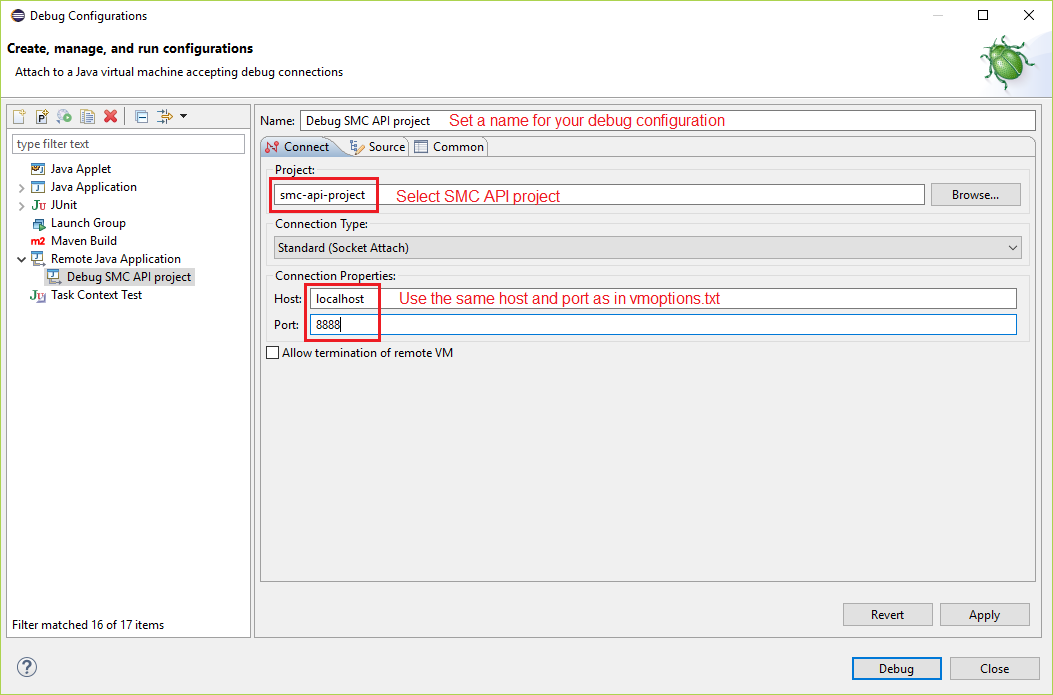
-Xrunjdwp:transport=dt_socket,address=localhost:8888,server=y,suspend=n
Start the Solibri desktop application. The debugging mode is now enabled.
CREATE A DEBUG CONFIGURATION IN ECLIPSE
In Eclipse, create a new debug configuration for a Remote Java Application. Click Debug to start debugging.
ADD A BREAKPOINT IN YOUR SOURCE CODE
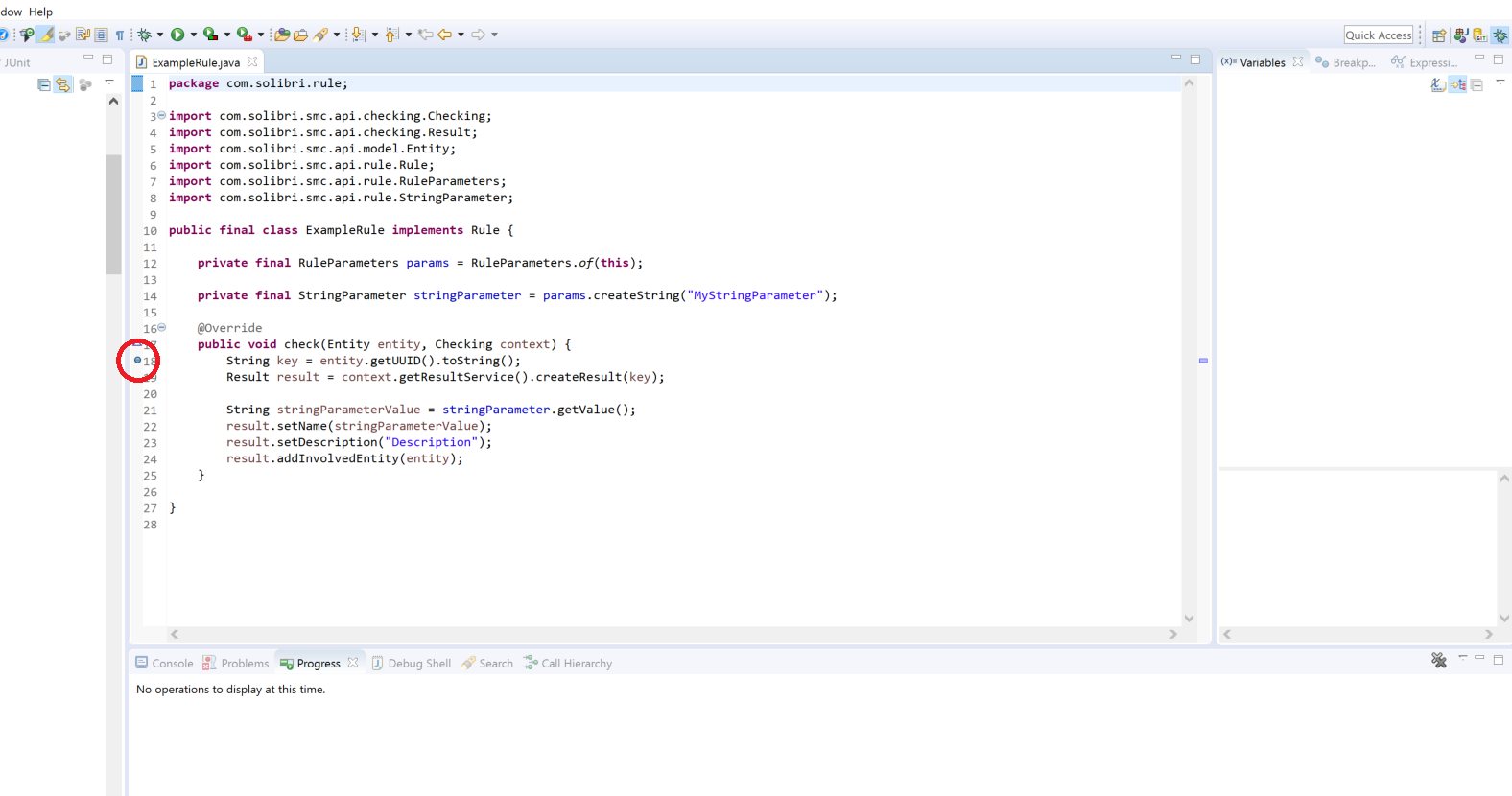
Add a breakpoint in the code by double clicking the left margin. By right clicking the margin you will see all the breakpoint options.
RUN CHECKING IN SOLIBRI OFFICE
- Open a model in the Solibri desktop application
- Create a ruleset containing your rule and save the ruleset file in Ruleset Manager. The saving of the ruleset saves your time because you don't need to create and parametrize the rule after restarting the Solibri desktop application.
- Open the saved ruleset
- Click Check in the Solibri desktop application Checking view
START DEBUGGING
The program stops now to the breakpoint. The Eclipse should have an arrow marker at the breakpoint. You can now start debugging. See Eclipse Help for more information.
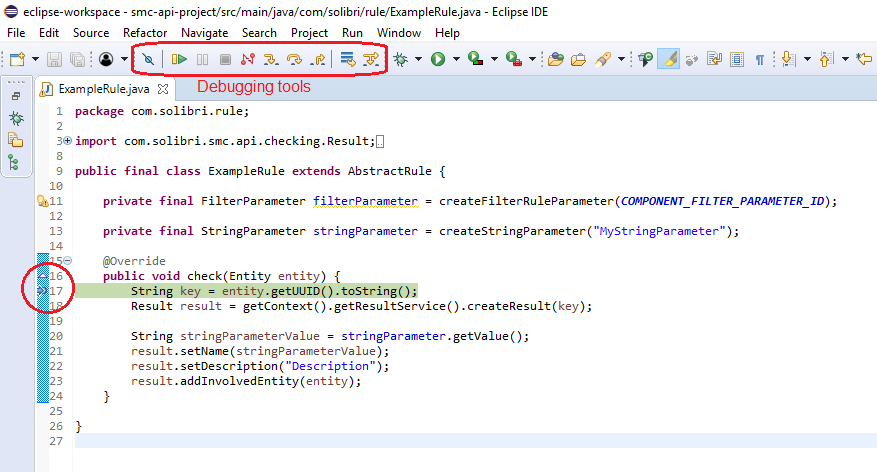
Operations that you can do while debugging:
- Stepping the program forward line by line
- Investigating variable values
- Adding more breakpoints and letting the program run forward to that breakpoint
- Adding a condition to the breakpoint
HOW TO RUN THE CHECK AGAIN
The Solibri desktop application doesn't run the check again if the parameters are unchanged. Change a parameter in the Solibri desktop application Parameters view to make the Solibri desktop application check again. E.g. Adding a new filter row and removing the same row will also work.